arrow_back home
menu_book Getting Started Guide

How to Use the
Mahallah360 App

Follow this simple step-by-step guide to get the most out of Mahallah360 — your complete Islamic community companion.

Welcome Screen
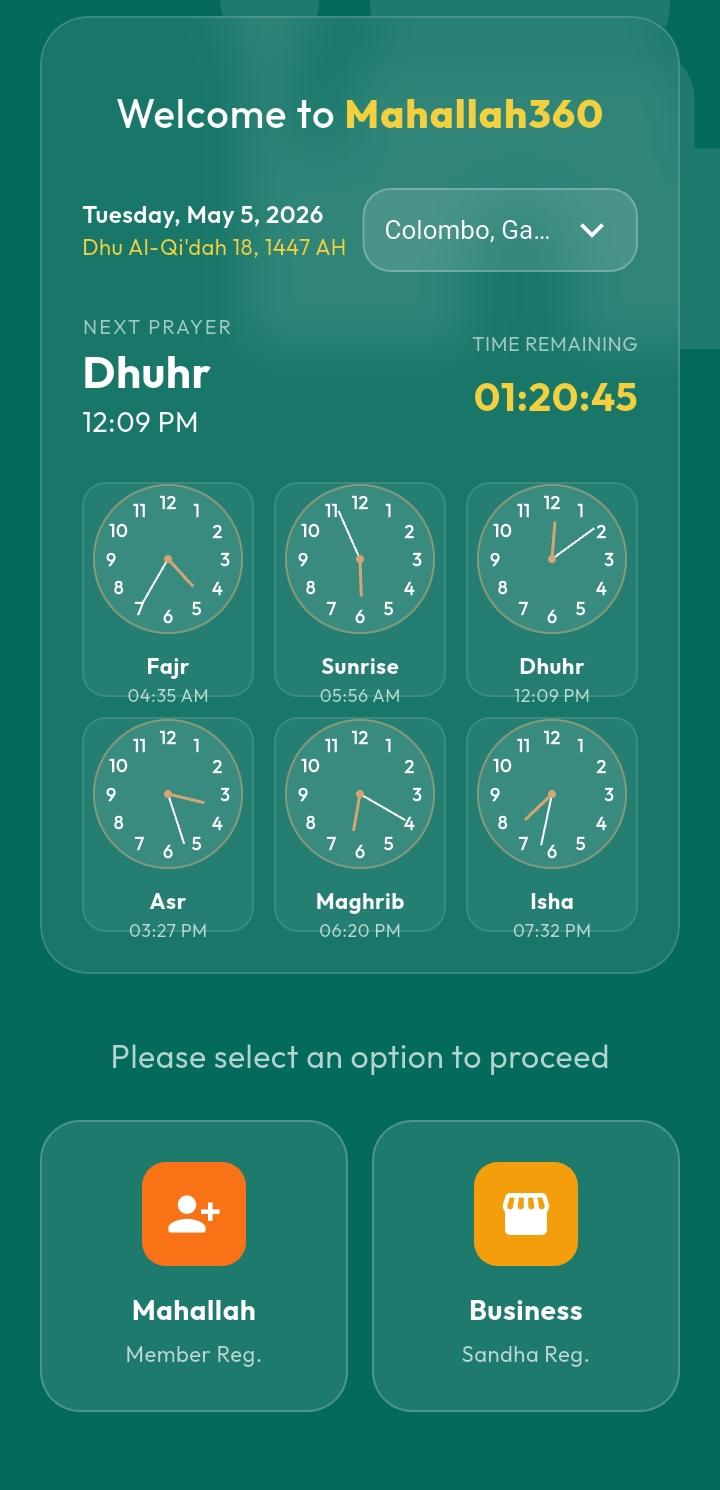
Figure 1 – Welcome Screen
Registration Type
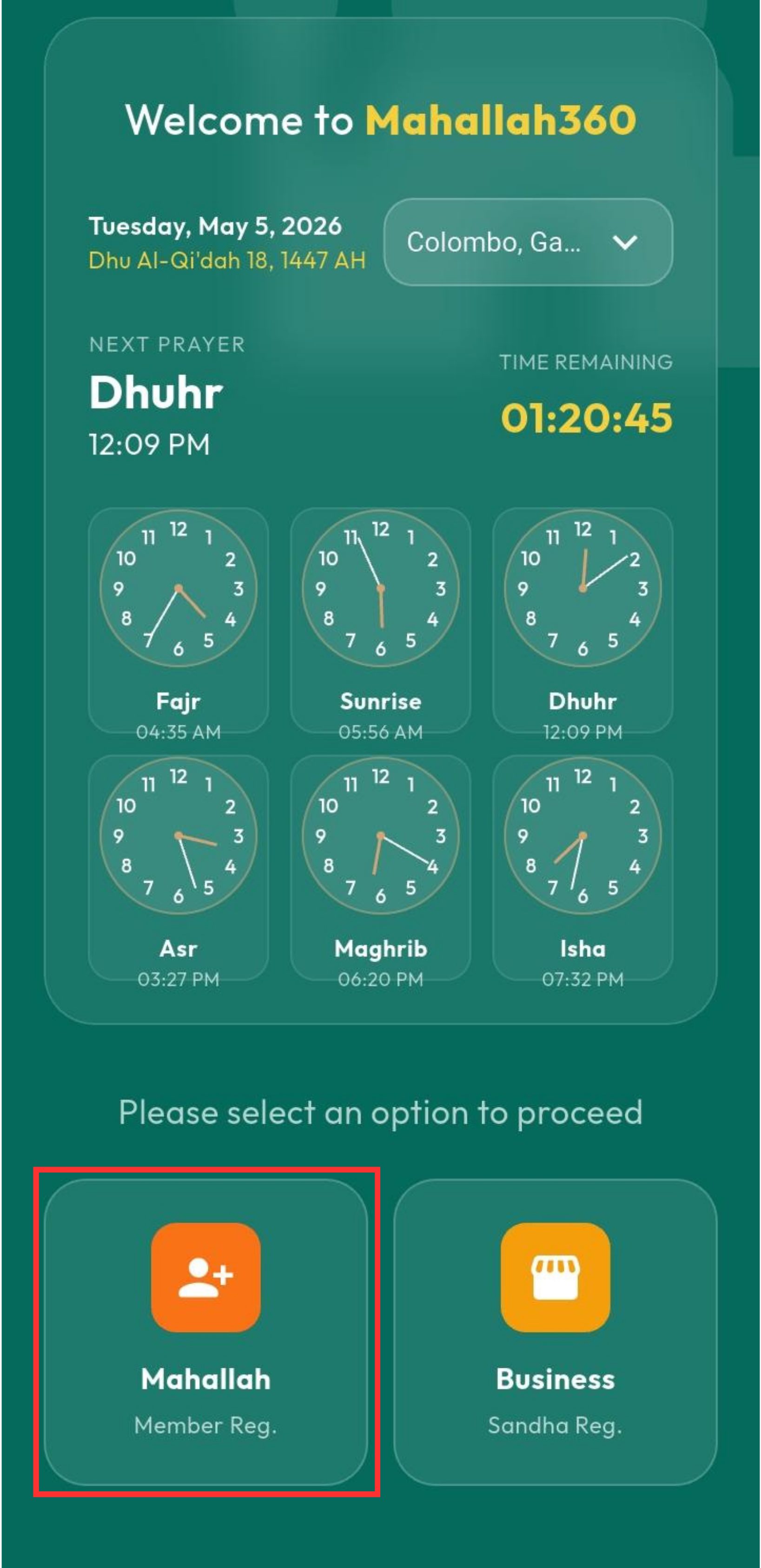
Figure 2 – Registration Type
Select Mahallah Option
Figure 3 – Select Mahallah
NIC Entry Screen
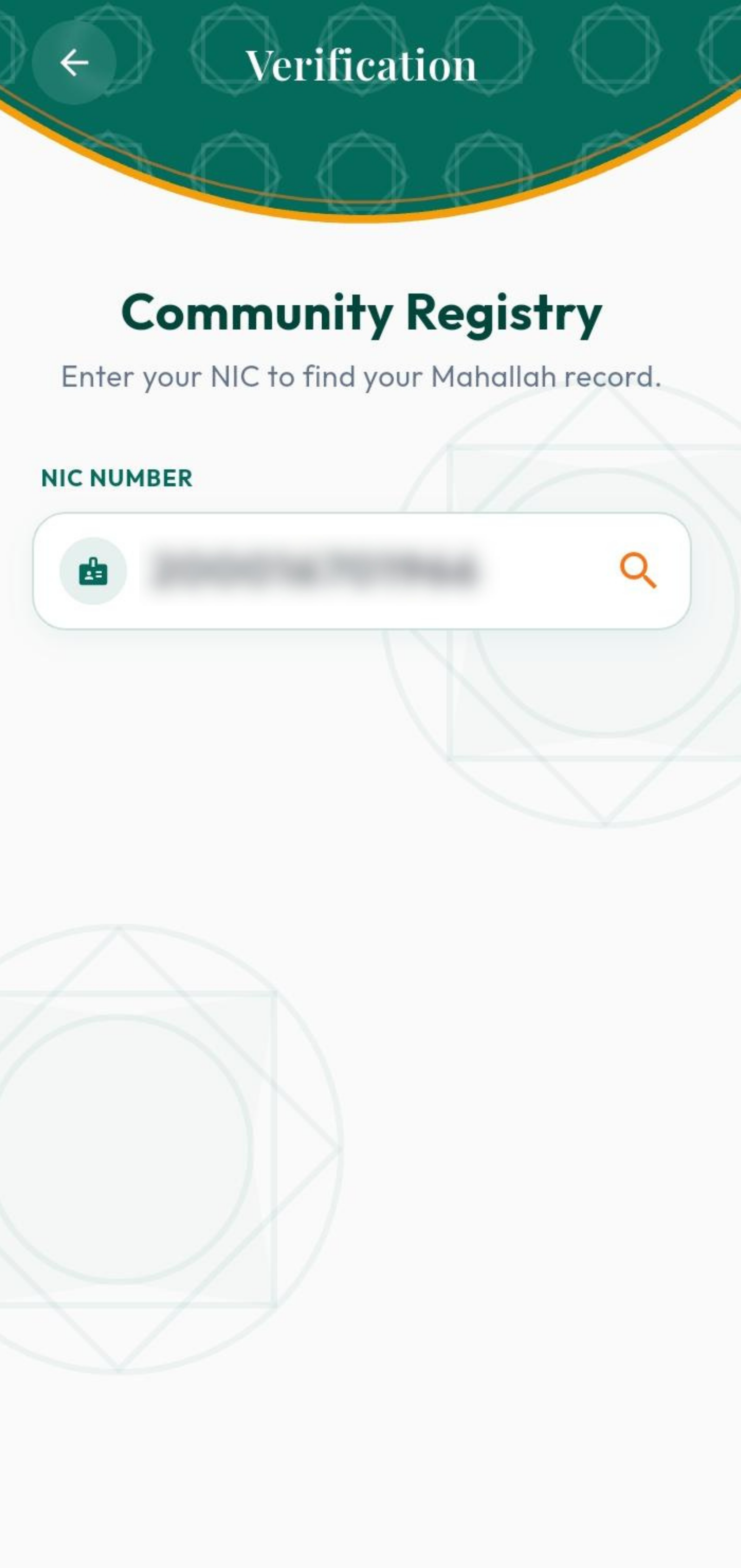
Figure 4 – NIC Entry
Confirm Details Screen
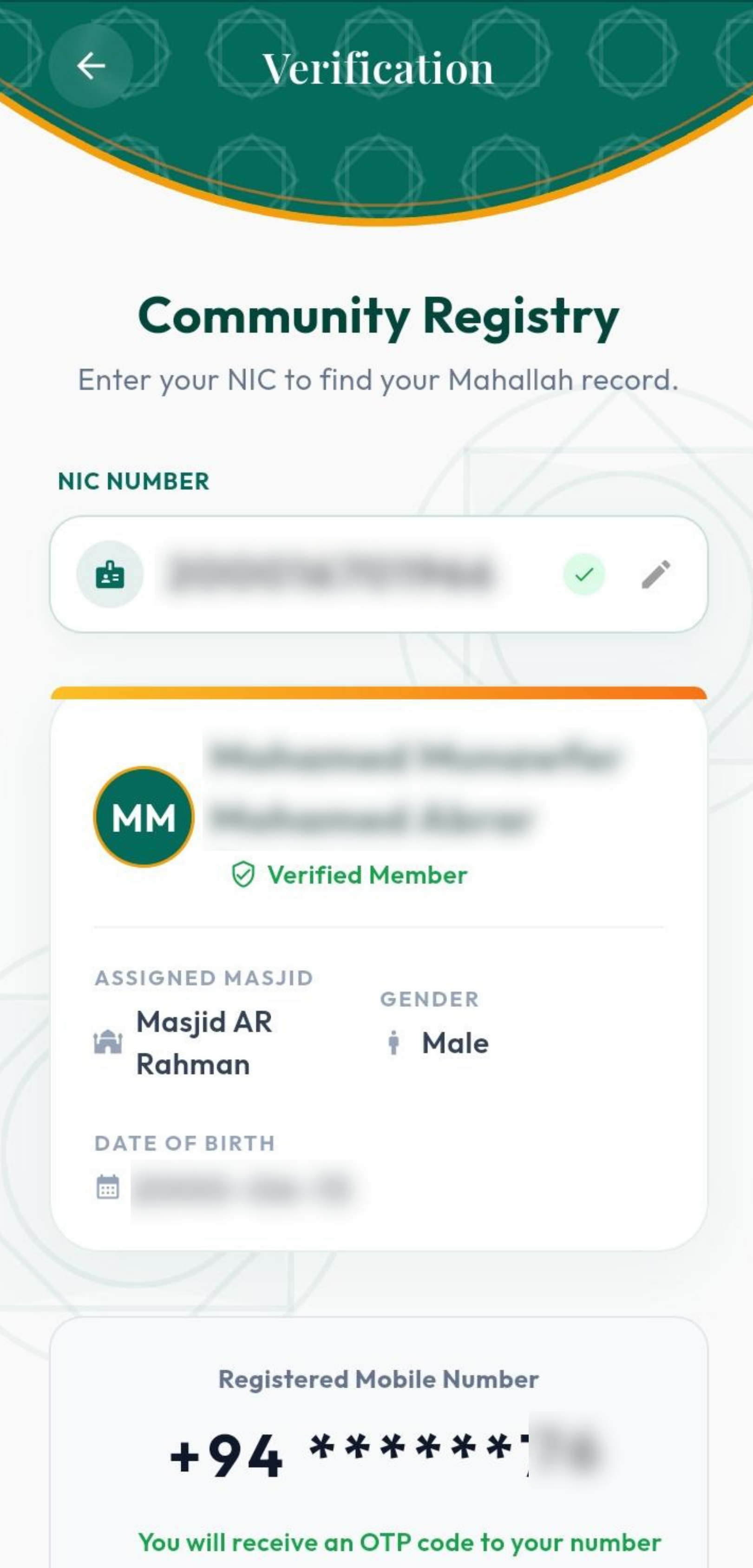
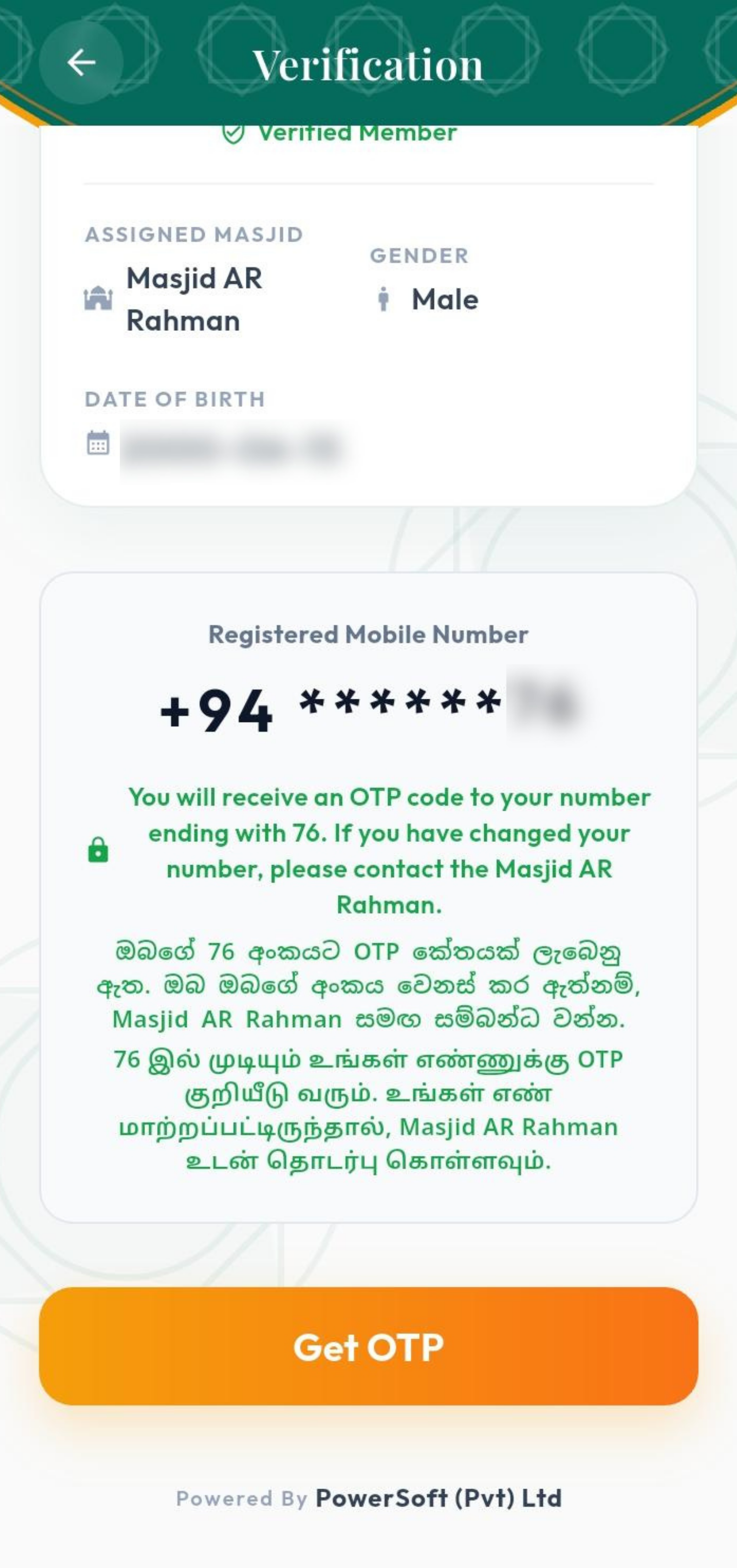
Figure 5 – Confirm Details
Confirm Details Screen 2
Figure 6 – Confirm Details (2)
OTP Verification Screen
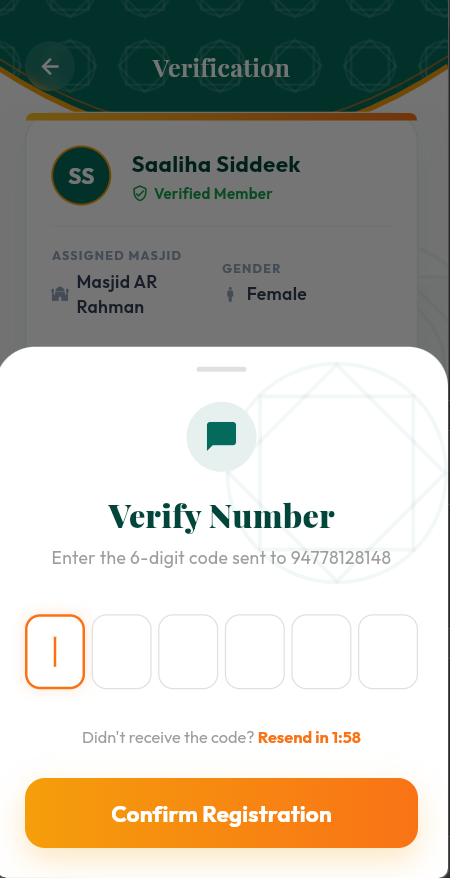
Figure 7 – OTP Verification
Figures 1 – 7 show the complete Mahallah Member registration flow. Figure 1 is the Welcome Screen, which displays today's English & Arabic date along with the day's Azan times. Figure 2 shows the registration type selection screen — tap Mahallah Members Reg. to proceed as a community member. Figure 3 shows the Mahallah selection screen that appears once Mahallah Members Reg. is tapped. Figure 4 shows the NIC entry screen where the registered head of household's NIC number is entered and searched. Figures 5 & 6 show the confirmation screen that displays the registered name, Mahallah, gender, date of birth, and the masked mobile number for verification. Figure 7 shows the OTP screen where a 6-digit code sent via SMS is entered to complete identity verification and gain access to the app.
01 Welcome

Welcome Screen & Registration Type

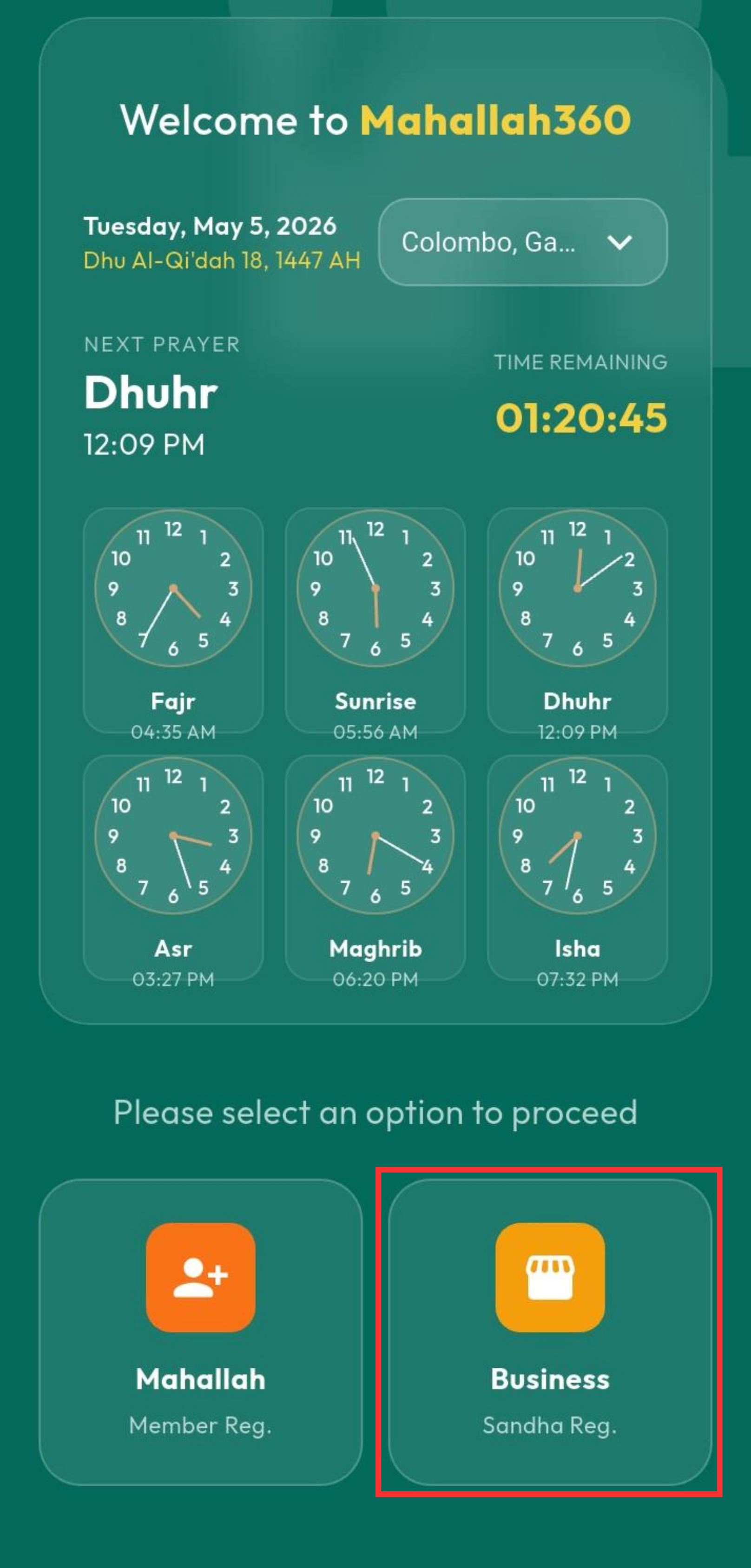
On the Welcome screen you will see today's English & Arabic date along with the day's Azan clocks. Choose your registration type to get started.

mosque

Mahallah Members Reg.

Tap Mahallah Members Reg. to register as a community member of your local Mahallah.

storefront

Business Sanda Reg.

Tap Business Sanda Reg. if you are registering as a business participant associated with the Mahallah community.

info

If Mahallah Members Reg. is selected, the following steps will apply — you will be taken through location verification and NIC lookup to confirm your household registration before proceeding.

02 Verification

Enable Location & Enter NIC

Before proceeding, the app requires your location access to be enabled. Once location is granted, enter the NIC number of the registered head of household to look up your record.

location_on

Enable Location Access

If location access is blocked, a prompt will appear — go to your device Settings and enable location for Mahallah360, then return to the app to continue.

badge

Enter Head of Household NIC

Type the NIC number of the registered head of household into the field provided on screen.

search

Tap Search

Tap the Search icon to look up the registered record associated with the NIC you entered.

03 OTP

Confirm Details & OTP Verification

Your registered details will be displayed for confirmation. Once verified, request your OTP to gain access to the app.

manage_accounts

Confirm Registered Details

Your name, registered Mahallah, gender, date of birth, and the registered mobile number (last 2 digits visible) will be displayed for confirmation before proceeding.

sms

Request Your OTP

Tap Get OTP — a 6-digit code will be sent instantly to the registered phone number shown on screen.

pin

Enter the 6-Digit Code

Type the OTP received via SMS into the verification field and tap Verify to confirm your identity.

verified_user

Access Granted

Once the OTP is verified you will be taken directly to the Main Home page of the Mahallah app.
arrow_downward
Home Screen – Prayer Times
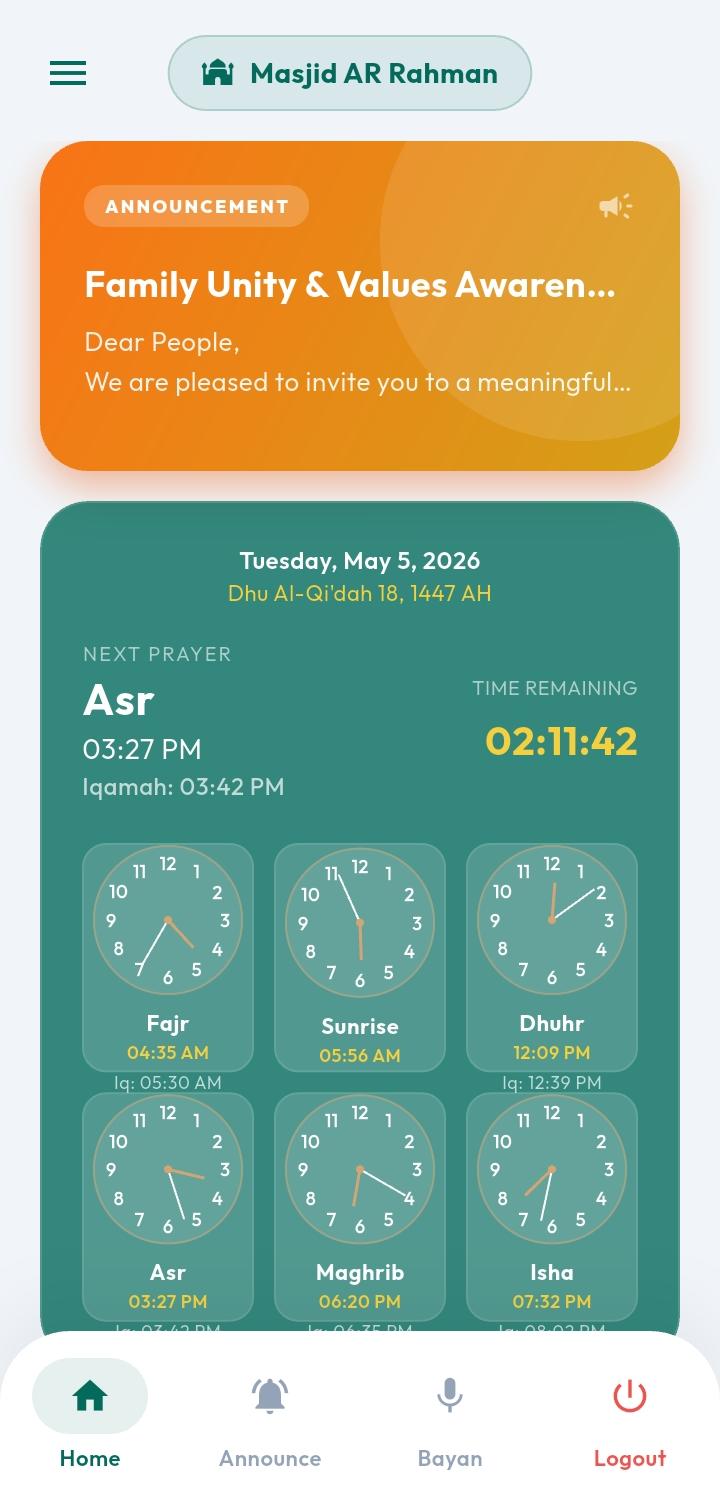
Figure 8 – Prayer Times
Home Screen – Community
Figure 9 – Community Tools
Home Screen – Qibla
Figure 10 – Qibla Compass
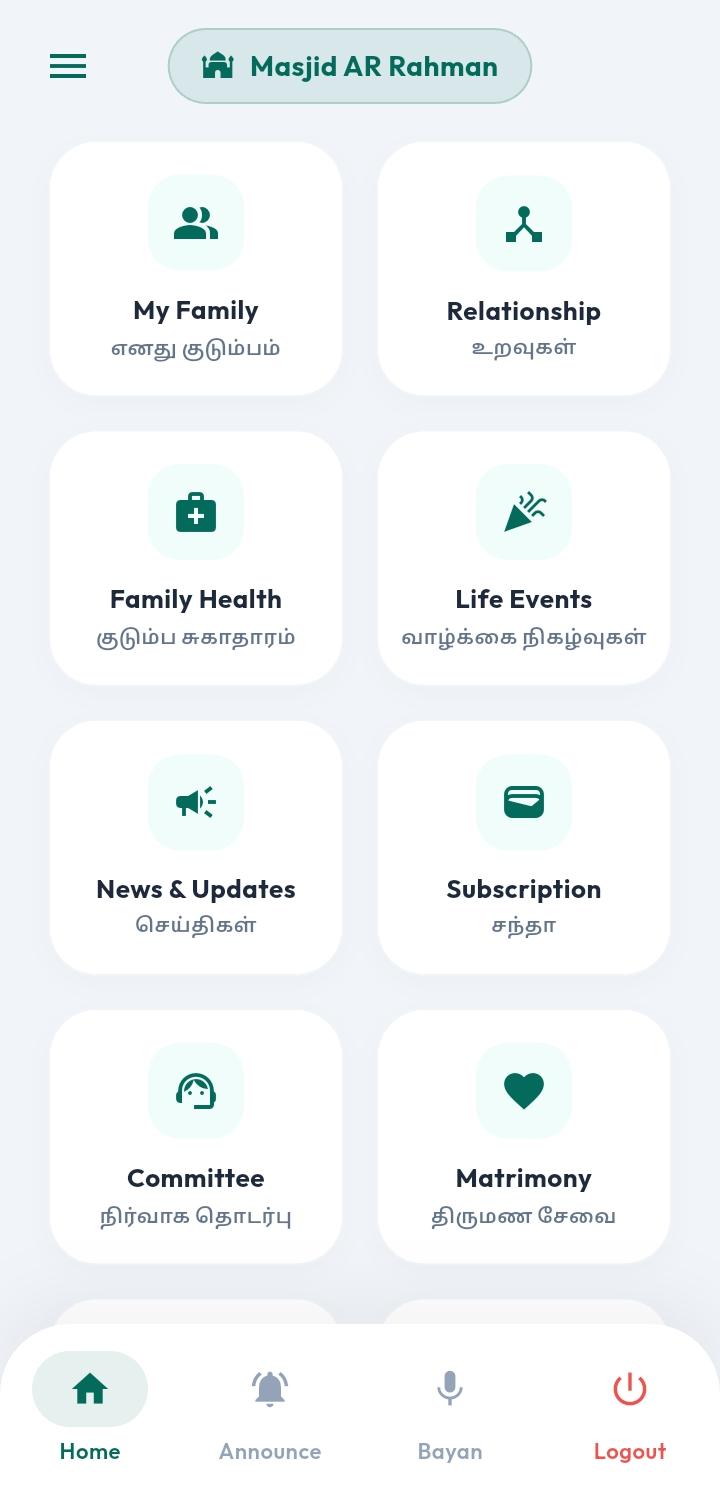
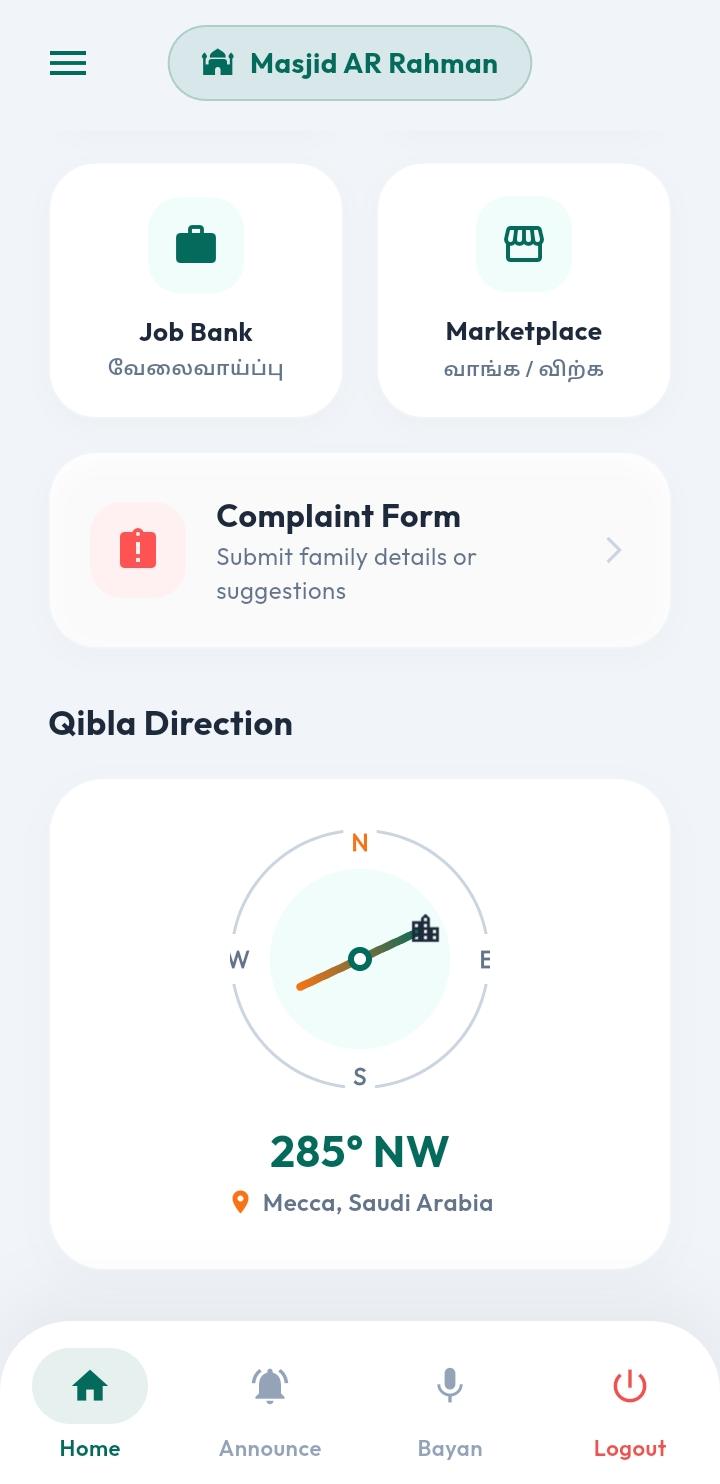
Figures 8 – 10 show the Main Home Screen after successful login. Figure 8 shows the top section of the home screen — your Mahallah name is displayed at the top, followed by live Azan clocks for Fajr, Sunrise, Duha, Dhuhr, Asr, Maghrib, and Isha, with a countdown timer to the next prayer. Figure 9 shows the community tools section — including navigation cards for Family & Personal Details, Announcements, and the Complaint Form. Figure 10 shows the live Qibla direction compass at the bottom of the home screen, which accurately points to the Qibla from your current location at all times.
04 Daily Use

Your Home Screen & Prayer Times

After login, your Mahallah name is displayed at the top. Scroll through the home screen to see announcements, prayer timetable, community tools, and the Qibla compass — all in one place.

campaign

Live Announcements

New Mahallah announcements are highlighted at the top of the home screen so you never miss important community news.

wb_sunny

Daily Prayer Clocks

Fajr, Sunrise, Duha, Dhuhr, Asr, Maghrib, and Isha times are shown with analog clocks, the next prayer name, and a live countdown timer.

calendar_month

Hijri & Gregorian Date

Both the Islamic (Hijri) date and the English date are displayed prominently on the home screen every day.

group_add

Family & Personal Details

Use the navigation cards to add and manage your family members' and personal details within the app.

report_problem

Complaint Form

Tap the Complaint card to navigate to the complaint submission form and raise concerns directly with your Mahallah administration.

explore

Qibla Direction Compass

A live compass at the bottom of the home screen shows the accurate Qibla direction from your current location at all times.
storefront

If Business Sanda Reg. is selected, the following steps will apply — you will be taken through location verification and phone number lookup to confirm your business registration before proceeding.

arrow_downward
Select Business Option
Figure 11 – Select Business
Business Phone Entry
Figure 12 – Phone Entry
Business OTP Verification
Figure 13 – OTP Verification
Business Home Screen
Figure 14 – Business Home
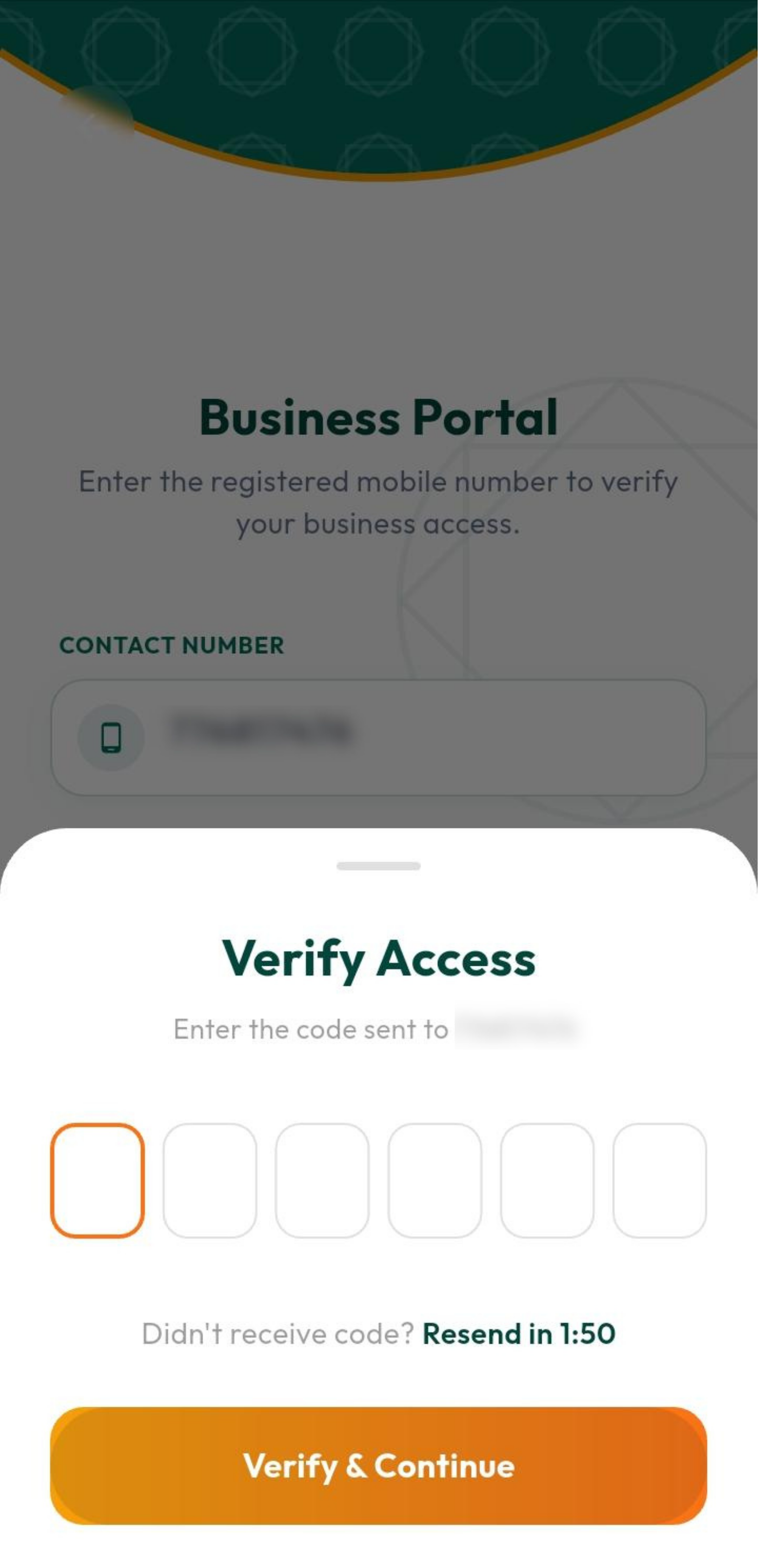
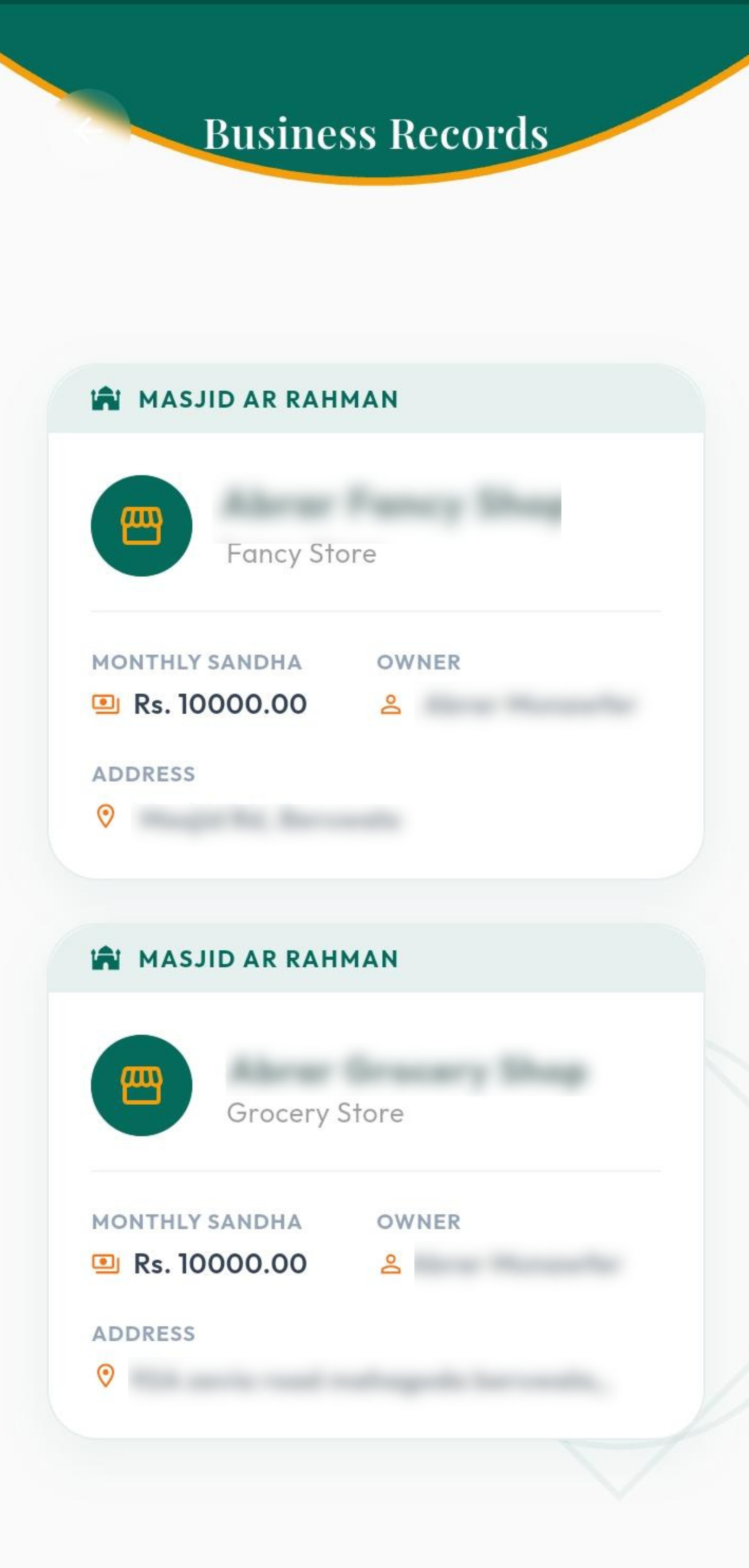
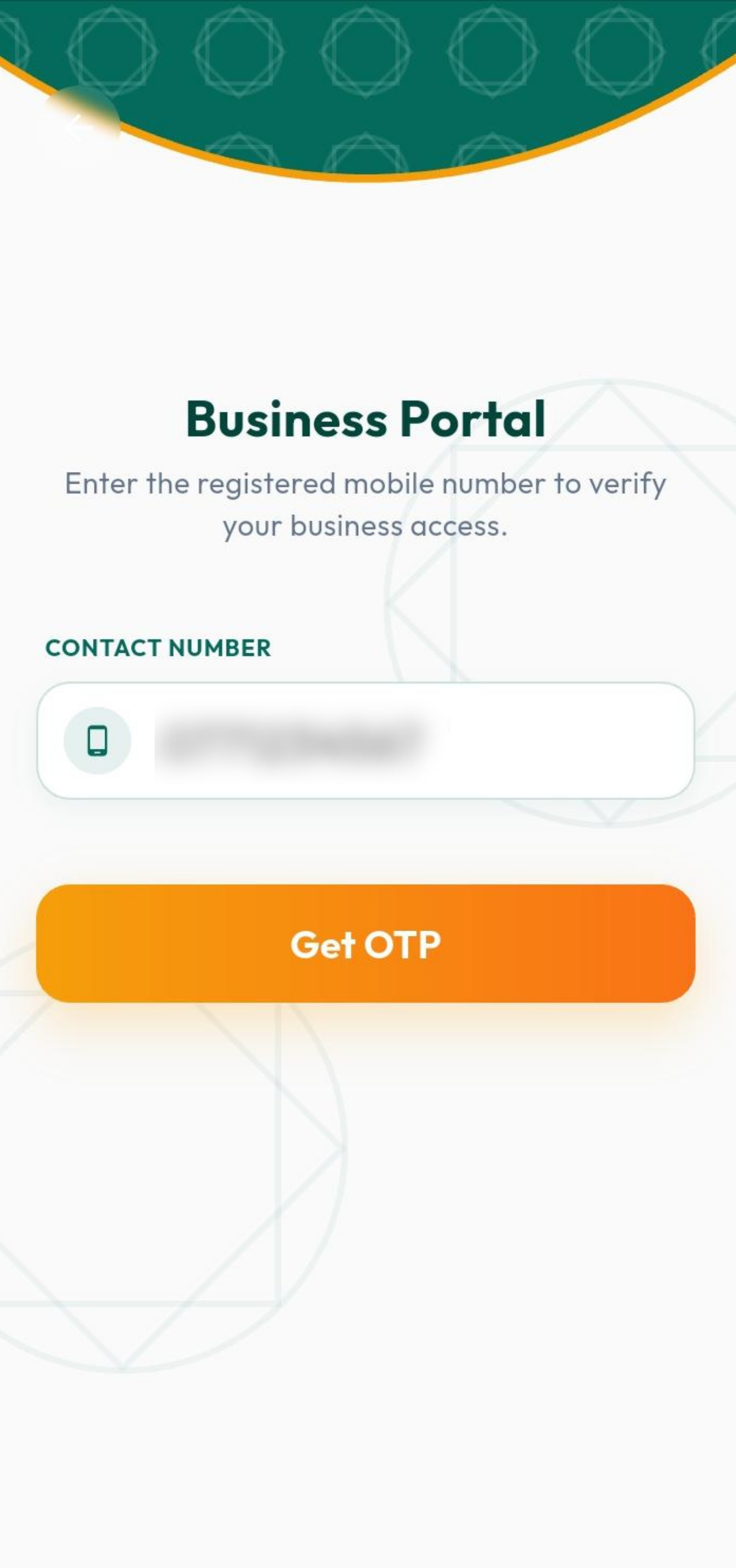
Figures 11 – 14 show the complete Business Sanda registration flow. Figure 11 shows the registration type screen where Business Sanda Reg. is selected. Figure 12 shows the phone number entry screen — the registered head of household's phone number is entered here and searched to find the linked business record. Figure 13 shows the OTP verification screen where a 6-digit code sent to the registered number is entered to confirm identity. Figure 14 shows the Business Home page that loads after successful verification, where all business records associated with the registered head of household are displayed and managed.
02 Business Verification

Enable Location & Enter Phone Number

The app will first request your location access. Once location is granted, enter the registered head of household's phone number to look up the associated business record.

location_on

Enable Location Access

If location access is blocked, a prompt will appear — go to your device Settings, enable location for Mahallah360, then return to the app to continue.

phone

Enter Registered Phone Number

Type the phone number of the registered head of household into the field provided. This must match the number recorded in the Mahallah system.

search

Tap Search

Tap Search to look up the business records linked to the phone number you entered.

03 OTP

OTP Verification & Business Access

Once your number is found, request a one-time password to verify your identity and gain access to the Business Home page.

sms

Request Your OTP

Tap Get OTP — a 6-digit verification code will be sent as an SMS to the registered phone number immediately.

pin

Enter the 6-Digit Code

Type the OTP you received via SMS into the verification field and tap Verify to confirm your identity.

verified_user

Access Granted — Business Home

Once verified, you will be redirected directly to the Business Home page, where all business records associated with the registered head of household are displayed and managed.